
 United States
 Australia
 Austria
 Belgium
 Bulgaria
 Canada
 China
China
 Croatia
 Cyprus
 Czech Republic
 Denmark
 Estonia
 Finland
 France
 Germany
 Greece
 Hong Kong
 Hungary
 Ireland
 Italy
Italy
 Japan
Japan
 Latvia
 Lithuania
 Luxembourg
 Malta
Malta
 Netherlands
 New Zealand
 Poland
 Portugal
 Romania
 Singapore
 Slovakia
 Slovenia
 South Korea
 Spain
Spain
 Sweden
 Switzerland
 Taiwan
 United Kingdom
United States
United Kingdom
United States
 United States
Australia
Austria
Belgium
Bulgaria
Canada
China
Croatia
Cyprus
Czech Republic
Denmark
Estonia
Finland
France
Germany
Greece
Hong Kong
Hungary
Ireland
Italy
Japan
Latvia
Lithuania
Luxembourg
Malta
Netherlands
New Zealand
Poland
Portugal
Romania
Singapore
Slovakia
Slovenia
South Korea
Spain
Sweden
Switzerland
Taiwan
United Kingdom
United States
United States
Australia
Austria
Belgium
Bulgaria
Canada
China
Croatia
Cyprus
Czech Republic
Denmark
Estonia
Finland
France
Germany
Greece
Hong Kong
Hungary
Ireland
Italy
Japan
Latvia
Lithuania
Luxembourg
Malta
Netherlands
New Zealand
Poland
Portugal
Romania
Singapore
Slovakia
Slovenia
South Korea
Spain
Sweden
Switzerland
Taiwan
United Kingdom
United States




We noticed you're visiting from .... Update your location?
United States
United States Canada Austria Belgium Bulgaria Croatia Cyprus Czech Republic Denmark Estonia Finland France Germany Greece Hungary Ireland Italy Latvia Lithuania Luxembourg Malta Netherlands Poland Portugal Romania Slovakia Slovenia Spain Sweden Switzerland United Kingdom Japan Singapore Hong Kong Taiwan China South Korea Australia New Zealand



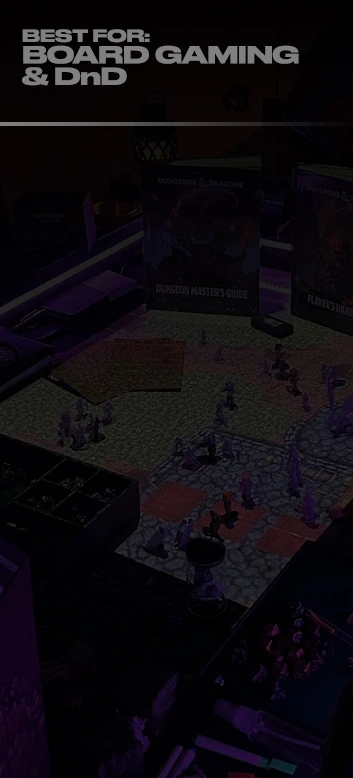
Game Theory Tables is dedicated to elevating your tabletop experience by giving Dungeon Masters the tools to run seamless, tech-enhanced game sessions. Live from PAX Unplugged, Drew from Game Theory Tables demonstrated exactly how to set up a digital Dungeons & Dragons session. Whether you’re a seasoned Game Master or just exploring digital integrations, this guide will show you how easy it is to get started.
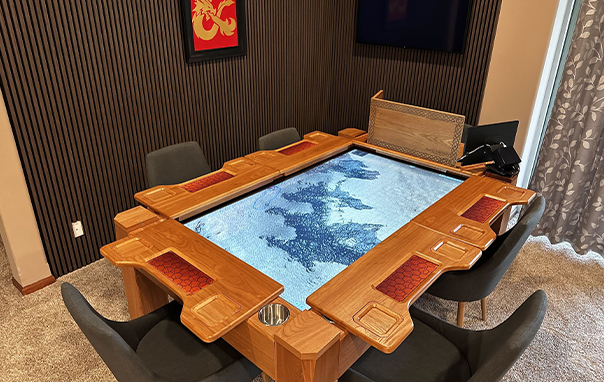
The control center for your digital gameplay starts on your primary computer.
With your game world active, you must connect it to the Arena Game Table so your players can interact directly with the action.
| Setup Phase | Action Required | Software / Technical Details |
|---|---|---|
| Browser Launch | Open a web browser on your computer. | Chrome, Firefox, or Edge |
| Server Access | Input your computer’s local IP address. | Local Network IP |
| Player Login | Log in using the player profile assigned to the table. | Dedicated Arena Player Profile |
| Display Casting | Drag the browser window to the built-in screen. | Arena's digital display |
| Immersion | Set the browser window to full-screen mode. | Full-Screen Web Interface |
Ergonomics & Player Integration: For the best touch-screen ergonomics, always create a specific player profile exclusively assigned to the Arena. By keeping your Game Master profile on your private computer screen and only casting this dedicated player profile to the table's display, you prevent players from seeing backend secrets while giving them direct, tactile control over their own view.
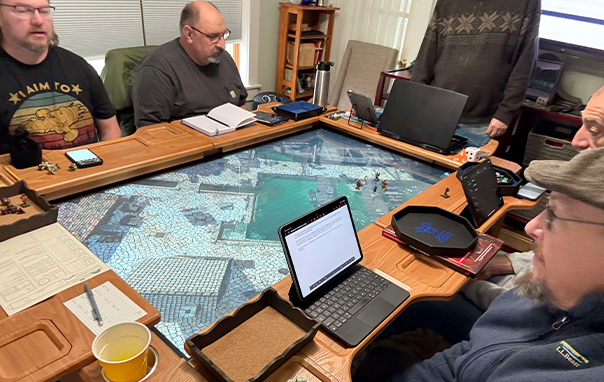
Transitioning into the Action: Once the setup is complete, players can physically interact with the digital map. Using intuitive touch gestures directly on the Arena Game Table's touch-enabled surface, players can:
This bridges the gap between physical and digital gameplay, perfectly suiting both casual one-shots and ongoing campaigns.
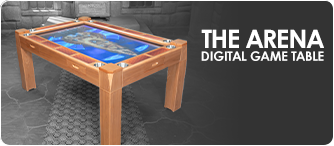
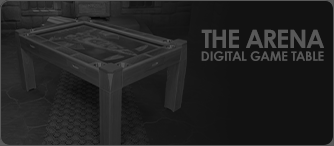
The Ultimate Digital Centerpiece: The Arena isn’t just a piece of furniture—it’s a centerpiece for digital tabletop gaming. It brings a new level of interactivity to your gaming space by featuring:
At Game Theory Tables, we believe that a game table should do more than just hold your miniatures—it should be part of the story. Stay tuned for more tips, demos, and behind-the-scenes content from our team!
You can use any major web browser to access your local server, including Chrome, Firefox, or Edge.
No. The Arena Game Table features a touch-enabled surface, allowing players to use intuitive touch gestures to move tokens, reveal fog of war, and interact directly with the map.
The Arena Game Table is designed to be compatible with leading VTT platforms, most notably Foundry Virtual Tabletop (VTT).
Follow us on:

 Proceed to Checkout